Disclaimer: 9to5gadgets.com is a participant of the Amazon Services LLC Associates Program. Any valid purchases made through clicking on the links on this site (when directed to Amazon) will garner us a commission.

Showing posts with label RAM upgrade. Show all posts

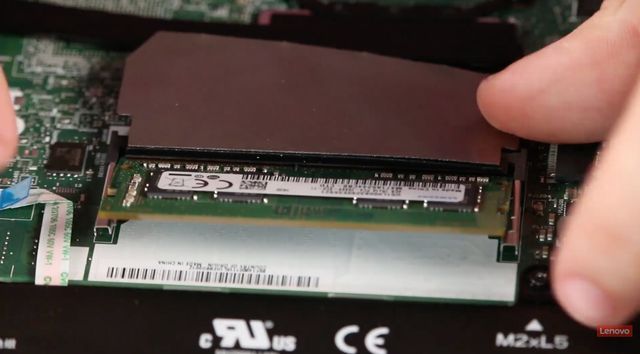
Lenovo Ideapad 3 81X800ENUS RAM Upgrade Tutorial

We've already talked in-depth about the Lenovo Ideapad 3 81X800ENUS. We've mentioned that it's not really the best laptop the market has to offer and you could do better with numerous other options such as the ACEMAGIC AX15 with its 12th generation N95 processor, 16 GB of RAM, and 512 GB of storage. 

However, the fact that it's not the best laptop Lenovo has to offer doesn't mean there aren't a few tweaks we could do to improve the overall performance. On that note, today we're going to walk you through the process of upgrading the RAM on the Lenovo Ideapad 3 81X800ENUS.

With a powerful processor, 256 GB of SSD storage, and a crisp 15-inch display, a RAM upgrade would definitely mark an improvement for this notebook in everyday performance. Without further ado, let's get on with this upgrade tutorial.

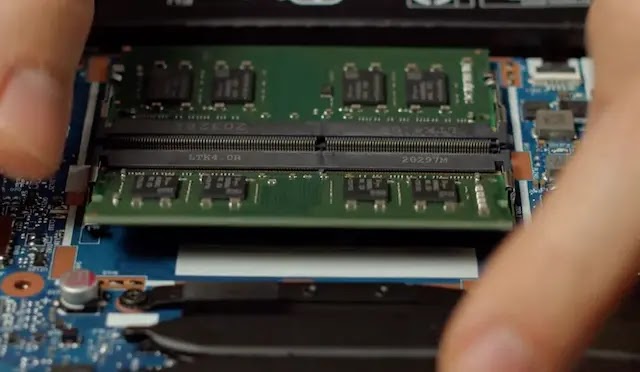
HP 15-eu1026nr RAM Upgrade Tutorial Step-By-Step


When we think about convertibles typically you're used to them being non-upgradable. You get what you bought and that's it. However, there are a few exceptions to this rule as we can see with the HP 15-eu1026nr.

This competitively-priced convertible features a stunning 15.6-inch Full HD touchscreen display, a AMD Ryzen 7 5825U processor, AMD Radeon graphics, 512 GB of SSD storage and a fairly limited amount of RAM of just 8 GB soldered onto the board.

Today, we're going to walk you through the process of upgrading the RAM on the HP 15-eu1026nr. You can't remove the onboard RAM that's soldered onto the board but you can insert another module within its available slot and that's what we're going to be covering today. 

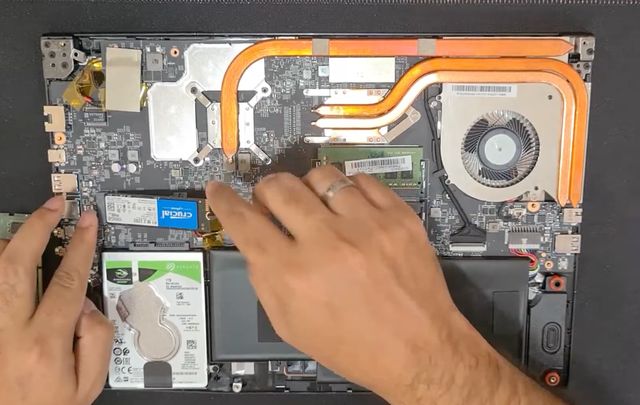
Lenovo IdeaPad Gaming 3 82SB0001US RAM Upgrade Tutorial

The Lenovo IdeaPad Gaming 3 82SB0001US is a great budget-friendly gaming laptop available at a really competitive price point. It features some interesting specs such as a 15.6-inch Full HD display with a 120 Hz refresh rate, a powerful AMD Ryzen 5 6600H processor, and a fairly respectable NVIDIA GeForce RTX 3050 graphics card. However, it does lack in some important aspects; RAM and Storage. Specifically, it boasts a meager 8 GB of RAM and just 256 GB worth of NVMe SSD storage (in the 2242 form factor).

Fortunately for us, it's easily upgradable and today we're going to specifically tackle how to go about upgrading the RAM on the Lenovo IdeaPad Gaming 3 82SB0001US. Out of all the RAM upgrades we've performed here over the course of the years, this is easily one of the easiest and we thank Lenovo for providing such a simple design for users to easily upgrade the RAM. 

Acer Aspire 5 A515-56-347N RAM Upgrade Tutorial Step-By-Step

There's no such thing as the perfect laptop. Typically you need to tweak things here or there to get it to the perfect point for you. Today, that's what we're going to be doing with the Acer Aspire 5 A515-56-347N. Don't get me wrong, this is a solid laptop for casual users. However, for those who want to make the most out of the dual-core Core i3 processor, 15.6-inch display, and 128 GB of SSD it would be very beneficial to push the boundaries by upgrading the RAM.

Today we're going to tackle this very issue and teach you how to quickly and easily upgrade the RAM on the Acer Aspire 5 A515-56-347N so you can get the most out of your laptop and take multitasking to a whole new level. Ready for the challenge? Your life will never be the same.

Acer Nitro 5 AN515-58-57Y8 RAM Upgrade Tutorial

The Acer Nitro 5 AN515-58-57Y8 is a gaming powerhouse packed with formidable features. Sporting a vivid 15.6-inch Full HD IPS display, you get impressive color and clarity that bring games and videos to life. 

Powering this gaming beast is the cutting-edge Intel Core i5-12500H processor, ensuring swift, uninterrupted gaming, and multitasking. It's armed with 16 GB of DDR4 RAM, facilitating smooth performance and speedy load times. For storage, the Nitro 5 comes with a 512GB solid-state drive, providing rapid, reliable storage for your games, files, and more.

But as impressive as these specs may be, there's always room for improvement, especially when it comes to gaming or running resource-intensive applications. This is where a RAM upgrade becomes particularly beneficial.

Why Upgrade the RAM?

Upgrading the RAM on your Acer Nitro 5 AN515-58-57Y8 can significantly enhance your laptop's performance. It allows for faster response times, smoother multitasking, and, most importantly, a significant improvement in gaming and application performance.

Adding more RAM can provide your laptop with more 'working' space, and subsequently, reduce reliance on the hard drive.

HP 15-dy2024nr RAM Upgrade Tutorial In 5 Minutes Or Less

The HP 15-dy2024nr is a robust laptop with modern specifications that make it a strong contender in today's tech-savvy market.

It features a 15.6-inch Full HD IPS micro-edge display that provides crisp and vibrant visuals. Under the hood, it sports an 11th Generation Intel Core i5-1135G7 processor, offering a powerful performance suitable for a wide range of tasks. As for memory and storage, it comes with 8GB DDR4 RAM and a respectable 256GB PCIe NVMe M.2 SSD, respectively. This combination ensures smooth multitasking and quick boot-up times for your applications under general usage.

However, this doesn't mean you would not benefit from an upgrade. Specifically, upgrading your laptop's RAM can have a significant impact on its performance.

For a laptop like the HP 15-dy2024nr, which is already equipped with a powerful processor, a RAM upgrade can further enhance its potential. It facilitates smoother multitasking, allows more programs to run simultaneously without slowdowns, and accelerates load times for data-intensive applications.

For professional tasks like video editing, 3D rendering, or high-end gaming, having ample RAM is a necessity. So, whether you're a professional looking to boost your productivity or a gamer aiming for better gaming performance, a RAM upgrade is worth considering. In this tutorial, we'll walk you through the steps of performing the HP 15-dy2024nr RAM Upgrade.

Acer Aspire 5 A515-45-R74Z Storage Upgrade Step-By-Step

We've already talked in-depth about the process of upgrading the RAM on the Acer Aspire 5 A515-45-R74Z. Today things are about to get a bit more complicated as we set out to upgrade the storage on the Acer Aspire 5 A515-45-R74Z by installing another SSD unit. 

We've talked multiple times about the Acer Aspire 5 A515-45-R74Z, it's a brilliant laptop that boasts a powerful AMD Ryzen 5 5500U Hexa-Core processor, 8 GB of RAM, and 256 GB of NVMe PCIe SSD storage. 

It's a great laptop and for most people, these specs are more than enough. However, for power users, both storage and RAM may fall short and that's where this tutorial comes in. Today we're going to take you through the whole process of upgrading the storage on this laptop so that you can store all your multimedia library without having to deal with the 256 GB restriction. 

Be warned, it's not as straightforward as other upgrades we've performed in the past simply because of the layout that Acer has given this notebook but with a little bit of patience you can easily get it done. Let's get on with it!

Acer Aspire 5 A515-45-R74Z RAM Upgrade Step-By-Step

The Acer Aspire 5 A515-45-R74Z is a high-performance laptop that boasts an array of impressive features. With a 15.6-inch Full HD IPS display, it offers a vibrant and sharp viewing experience. Under the hood, it is powered by an AMD Ryzen 5 5500U Hexa-Core processor, which ensures smooth and efficient performance. The laptop comes with 8GB DDR4 memory and a 256GB NVMe SSD, providing ample space for all your files and applications. 

However, even with all these specs, it's possible that it can fall short for power-users, mainly because of the relatively limited RAM. Sure, 8 GB is enough for an average user but for users who use resource-intensive applications it can quickly fall short and you may run into the dreaded "lags in performance".

In this tutorial, we will guide you through the process of upgrading the RAM on your Acer Aspire 5 A515-45-R74Z

HP 15-dw0083wm RAM Upgrade Tutorial in 5 Minutes or Less


The HP 15-dw0083wm is a solid entry-level laptop. It features a powerful Intel Celeron N5000 processor, 128 GB of internal storage, a 15.6-inch HD display, and 4 GB of RAM. 

Now, here's the kicker – to really juice up this bad boy, you might want to think about upgrading the RAM. Trust me, it's gonna make a big difference!

So, what's the deal with this RAM upgrade? Well, more RAM means you can run multiple apps at once without your laptop getting all sluggish. It's like giving your system a boost and making multitasking a breeze. 

Whether you're surfing the web, working on big docs, or even gaming, upgrading the RAM on the HP 15-dw0083wm is going to be truly beneficial for your day-to-day tasks and it's not even an expensive or complicated process to perform. 

In this tutorial, we'll walk you through everything you need to know and every step you need to take to make your upgrade a success. Ready? Let's get the screwdriver!

HP 15-dw1083wm Step-By-Step Quick RAM Upgrade Tutorial


The HP 15-dw1083wm is a versatile laptop that offers a blend of performance and value. It comes with an Intel Pentium Gold 6405U Processor, a 15.6-inch HD display, and a pre-installed Windows 10 Home operating system. The laptop also features a 128GB SSD for storage and comes with 4GB of RAM. However, to get the most out of this device, you might consider upgrading the RAM.

Specifically, upgrading the RAM of your HP 15-dw1083wm can significantly enhance its performance. More RAM allows your laptop to run more applications simultaneously without slowing down. It also improves the overall speed and responsiveness of your system, making multitasking a breeze. Whether you're browsing the web, working on large documents, or even gaming, a RAM upgrade can make a noticeable difference.

Asus TUF Gaming F15 FX506HF-ES51 RAM Upgrade Tutorial

The Asus TUF Gaming F15 FX506HF-ES51 has already garnered a reputation as a formidable gaming machine, featuring a potent combination of processing prowess, graphics capabilities, and overall durability. However, for those who crave even more speed, responsiveness, and multitasking capabilities, upgrading the RAM becomes an enticing option. Whether you're a passionate gamer or a professional seeking a productivity boost, the right amount of memory can make a world of difference in your computing experience.

In this post, we will delve into the process of upgrading the RAM on the Asus TUF Gaming F15 FX506HF-ES51, explore the technical considerations involved, and guide you through the steps to unleash the true potential of your gaming laptop. So, buckle up and get ready to take your gaming and computing experience to the next level!

[Tutorial] Asus ROG Strix G16 G614JV-AS73 RAM Upgrade

Welcome to our tutorial on how to upgrade the RAM in your Asus ROG Strix G16 G614JV-AS73! The Asus ROG Strix G16 is a powerful gaming laptop known for its exceptional performance and sleek design. However, if you're looking to take your gaming experience to the next level or improve multitasking capabilities, upgrading the RAM is a great option. 

In this tutorial for the Asus ROG Strix G16 G614JV-AS73 RAM Upgrade, we will guide you through the process step by step, ensuring that you can confidently and successfully upgrade the RAM in your Asus ROG Strix G16. Whether you're a seasoned tech enthusiast or a beginner, this tutorial is designed to be accessible and easy to follow. So let's dive in and unlock the full potential of your gaming laptop! 

[Tutorial] MSI GE76 Raider Storage Upgrade In 5 Minutes or Less

We've already talked about how to upgrade the RAM on an MSI GE76 Raider series laptop. However, as you might already know, the other feature that you can easily upgrade on a gaming laptop is the storage. Specifically, unlike most traditional laptops which will feature a single PCIe port and a SATA port, gaming laptops will often include a secondary PCIe port where you can introduce your own M.2 PCIe NVMe storage drive.

[Tutorial] MSI GE76 Raider RAM Upgrade With Pictures

When it comes to gaming there are three needs that need to be met. You need to have a killer processor, a high-end graphics card, and plenty of memory to be able to handle AAA games smoothly. 

When buying a gaming laptop you'll generally be able to check off the first two items but RAM is often not a priority with the more affordable gaming laptops. This is also because they know that this is one of the few aspects that the user can opt to upgrade himself later down the line. 

Such is the case with the MSI GE76 Raider, a laptop lineup that lands on shelves with numerous configurations but generally not a lot of RAM on any of them. Having said that, it's also very easy to upgrade the RAM on the MSI GE76 Raider and that's exactly what we're going to be covering today in this quick and easy tutorial.

[Tutorial] MSI GF63 Storage Upgrade (PCIe NVMe) in 5 Minutes Or Less

We've already tackled how to upgrade the memory on the MSI GF63 laptop lineup. However, what if you wanted to upgrade the storage instead. That's what we're going to be covering today. Specifically, we're going to talk about how to increase the storage on an MSI GF63 laptop by including an NVMe SSD storage unit, something that the laptop allows without the need to swap out the onboard storage.

Without further ado, let's get on with the MSI GF63 storage upgrade tutorial. A quick and easy process that shouldn't take you more than 5 minutes to complete.

MSI GF63 RAM Upgrade Tutorial In 5 Minutes Or Less

The MSI GF63 gaming laptop lineup is undoubtedly one of MSI's most promising lines. These laptops come equipped with high-end CPU's, a solid graphics card, and respectable storage options. All of this at a very competitive price point. However, as it happens with most affordable gaming laptops, they don't pack a lot of memory when they land on our shelves.

Fortunately for us, this is something that can be quickly and swiftly remedied in less than 5 minutes, opening up a world of possibilities. Today that's exactly what we're going to do as we walk you through the process to upgrade the RAM on the MSI GF63. A step-by-step guide to make sure you can increase the memory on your laptop and benefit from all that comes with that. 

Acer Aspire 7741Z 5731 RAM Upgrade Step By Step

A lot of people end up buying a new laptop because their old notebook simply isn't as fast as it once was. However, for most of us, this is an issue that can be quickly solved by upgrading the RAM on our older notebook. This simple procedure will breathe new life into our old laptop and will make a substantial difference in terms of speed and overall performance.

In today's RAM upgrade, we're going to be working with the Acer Aspire 7741Z 5731, a fairly outdated laptop by today's standard that could really do with a quick memory upgrade to improve the user experience. 

Without further ado, let's get on with the Acer Aspire 7741z 5731 RAM upgrade!

HP 15-f272wm RAM/Memory Upgrade in 5 Minutes Or Less!

When it comes down to speeding up a laptop's performance there's only so many things you can do in the software department before you need to take a look at the hardware department. 

Undoubtedly, one of the easiest and most efficient ways by which you can improve your laptop's speed and overall performance is by upgrading the memory. And today that's exactly what we're going to do as we walk you through the process of upgrading the RAM on the HP 15-f272wm.

Lenovo ThinkPad T590 RAM/Memory Upgrade in 5 minutes Or Less

If you're looking to speed up your laptop there are a few things you can do. However, one of the most efficient ways to speed up your laptop's performance is undoubtedly to upgrade the available RAM. Specifically, the more memory your laptop has, the more tasks it can manage at any given time, making it that much faster in the process.

Here at 9to5gadgets we've covered a wide array of RAM upgrades over the years. Today we're going to be talking about how to upgrade the memory on one of the most popular business laptops of the last decade; the Lenovo Thinkpad T590.

It's a fairly simple process and you should be able to do it in less than 5 minutes since it's not an elaborate process. Today we're going to walk you through it step by step.

DDR5 vs DDR4 RAM: Everything You Need To Know

DDR5 vs DDR4
After the processor and the graphics card, RAM memory is another hardware component you should take into account before buying a computer since its capacity will determine whether you'll be able to run demanding workflows fluidly or not.

Over the last few years, DDR4 RAM memory has been the standard in desktops, laptops, and even smartphones, as there's a variant -known as LPDDR4- that was developed independently of DDR standards with better power efficiency in mind.

However, the arrival of the newest DDR5 standard promises to take multitasking performance to a whole new level thanks to its higher level bandwidth, denser memory sticks, and lower energy consumption, as well as many other interesting features we're going to cover in this post.