Disclaimer: 9to5gadgets.com is a participant of the Amazon Services LLC Associates Program. Any valid purchases made through clicking on the links on this site (when directed to Amazon) will garner us a commission.

Showing posts with label Storage upgrade. Show all posts

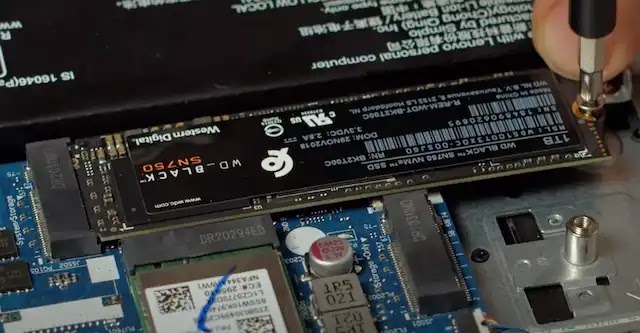
Dell Inspiron 16 5635 (‎i5635-A005SLV-PUS) Storage Upgrade Tutorial

We've talked in great detail about the Dell Inspiron 16 5635  (‎i5635-A005SLV-PUS), an impressive 16-inch laptop with a killer display, powerful AMD Ryzen 7 7730U processor, 1 TB of storage, and 16 GB of RAM. It's a great laptop and one that we recommend every day for students and professionals who want to get a solid laptop with a good price-to-value proposition

However, everything can always be improved, and while we're fairly happy with the 1 TB storage, you might need a bit more storage capacity than us. It's with that in mind that today we'll walk you through the process of upgrading the storage on the Dell Inspiron 16 5635 (‎i5635-A005SLV-PUS)

Specifically, we're going to be introducing a 2280 NVMe PCIe storage module. It's not a complicated upgrade, you should be in and out in about 10 minutes tops. So roll up your sleeves, get your screwdriver, and let's do this!
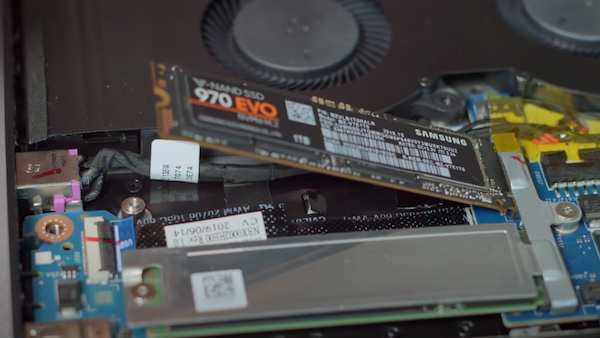
Lenovo IdeaPad Gaming 3 82SB0001US Storage Upgrade Tutorial

When it comes to gaming laptops there are several factors that contribute to them being a success. We generally focus on the processor, graphics card, and RAM. However, one aspect that's often overlooked is the storage. Having enough storage will not only help for a snappier performance if you've saturated your current drive with data but it will also allow you to store more games as well as your media library.

Yesterday we walked you through a step-by-step guide on how to upgrade the RAM on the Lenovo IdeaPad Gaming 3 82SB0001US. Today we're going to go in a different direction and we're going to help you upgrade the storage. Specifically, we're going to swap out the 2242 NVMe PCIe SSD for a bigger 2280 NVMe PCIe SSD. 

Acer Aspire 5 A515-56-347N NVMe / Storage Upgrade Tutorial

We've talked in-depth about the Acer Aspire 5 A515-56-347N, an interesting laptop that boasts a 15.6-inch Full HD display, 8 GB of RAM, and a very modest 128 GB of storage for an extremely compelling price point. It's a great laptop that's well-suited for casual users who don't need massive storage or massive RAM because they're going to work on relatively basic tasks on it.

However, should the need arise, it's also possible to upgrade the storage on this laptop. Specifically today we're going to teach you how to upgrade the NVMe storage on the Acer Aspire 5 A515-56-347N. Much like the RAM upgrade that we covered earlier, it's a fairly simple procedure that shouldn't really take you much more than five minutes.

It's possible to also use a SATA III drive but for this tutorial, we're going to focus on the upgrade of the NVMe storage unit because this is the one that offers roughly 5 times the speed over the traditional SATA III and will have the biggest impact both in storage as well as actual performance.

HP 15-dy2024nr Storage NVMe Upgrade Tutorial

The HP 15-dy2024nr is a versatile laptop built to meet the needs of the modern user. It showcases a bright 15.6-inch Full HD IPS micro-edge display, perfect for a wide range of multimedia content. At its heart, an 11th Generation Intel Core i5-1135G7 processor delivers the power and speed required for varied tasks. The laptop comes pre-installed with an 8GB DDR4 RAM for efficient multitasking. Moreover, it houses a 256GB PCIe NVMe M.2 SSD, ensuring fast application launches and sufficient space for storing files.

However, while 256 GB can be enough for some users, for many it's not enough. Additionally, boosting your laptop's storage capacity can significantly enhance its versatility and utility

The HP 15-dy2024nr, though already equipped with a solid-state drive for quick boot-up times and efficient data retrieval, can benefit immensely from a storage upgrade. As well as a RAM upgrade which we've already covered in this tutorial

A larger storage drive provides the space needed to house more applications, keep larger files, or maintain an extensive media library. It also means less reliance on external storage devices, which can be a significant convenience factor for many users. 

Whether you're a digital artist with a large portfolio, a gamer with a library of high-definition games, or a professional storing numerous large files, upgrading your laptop's storage can make a world of difference. In this tutorial, we will guide you on how to perform this crucial upgrade for your HP 15-dy2024nr.

Acer Aspire 5 A515-45-R74Z Storage Upgrade Step-By-Step

We've already talked in-depth about the process of upgrading the RAM on the Acer Aspire 5 A515-45-R74Z. Today things are about to get a bit more complicated as we set out to upgrade the storage on the Acer Aspire 5 A515-45-R74Z by installing another SSD unit. 

We've talked multiple times about the Acer Aspire 5 A515-45-R74Z, it's a brilliant laptop that boasts a powerful AMD Ryzen 5 5500U Hexa-Core processor, 8 GB of RAM, and 256 GB of NVMe PCIe SSD storage. 

It's a great laptop and for most people, these specs are more than enough. However, for power users, both storage and RAM may fall short and that's where this tutorial comes in. Today we're going to take you through the whole process of upgrading the storage on this laptop so that you can store all your multimedia library without having to deal with the 256 GB restriction. 

Be warned, it's not as straightforward as other upgrades we've performed in the past simply because of the layout that Acer has given this notebook but with a little bit of patience you can easily get it done. Let's get on with it!

Acer Aspire 5 A515-54 Storage Upgrade Guide With Pictures

Here at 9to5gadgets we talk a lot about RAM upgrades. However, the memory upgrade is not the only upgrade that we can easily perform on a laptop with little to no technical knowledge. You can also typically upgrade the storage with the addition of either an extra NVMe SSD unit or a standard SSD drive. Today we're going to walk you through upgrading the storage on the Acer A515-54 lineup of laptops. A fairly simple process that shouldn't take you much more than 5-10 minutes in total.

So, how do you do it? What type of storage unit can you use? That's what we're going to be covering here in great detail with a lot of pictures to make sure you can perform the upgrade quickly and easily.

Acer Aspire 5 A515-43-R19L SSD Upgrade/Installation Tutorial


A while back we talked about how to upgrade the RAM on the Acer Aspire 5 A515-43-R19L. The Acer Aspire 5 A515-43-R19L has quickly become a staple of the best-selling student laptops thanks to its balanced specs and competitive price point. Today, however, we're here to teach you how to upgrade the storage on this notebook, something many of you might be considering due to the fact that the laptop only features 128 GB worth of storage space. 

It's a relatively straightforward procedure for which you are going to need the SSD/HDD caddy screws that come with the laptop, as well as the connector and ribbon cable that you'll find within the notebook itself. Without further ado, let's get started with the upgrade!

Asus ROG Strix G15 G513 Quick Storage Upgrade Guide


We've recently talked about how you would go about and upgrade the RAM on the ASUS ROG Strix G15 G513. However, while this may be a top priority for many users, you might also be interested in upgrading the storage on this unit. Specifically, unlike most mid-range laptops, this gaming laptop offers the user an empty NVMe slot to easily expand the storage. Today I'm going to walk you through the fundamentals of how to go about and do just that. 

Acer Aspire 5 A515-46-R3UB SSD/Storage Upgrade

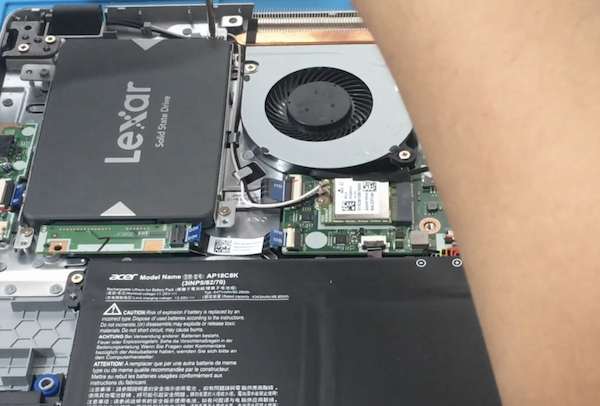
We've already covered how you would go about upgrading the RAM on the Acer Aspire 5 A515-46-R3UB. This is a fine laptop but it definitely has its shortcomings, mainly a limited 4 GB of RAM and a very stingy 128 GB of storage. And while we do love the Acer Aspire 5 A515-46-R3UB as a whole, today we're going to teach you how to go about upgrading the storage on the Acer Aspire 5 A515-46-R3UB through the SATA bay. A simple upgrade that shouldn't take you much more than 10 minutes from the start.

Dell Inspiron 15 3511 Storage Upgrade Tutorial in 5 Min or Less

We've already talked about how to go about upgrading the RAM on the Dell Inspiron 15 3511. Today, it's time for us to tackle how to upgrade the storage on this laptop. An upgrade we know many people will be eager to perform and fortunately for you it's just about the easiest upgrade you can take on next to the memory installation.

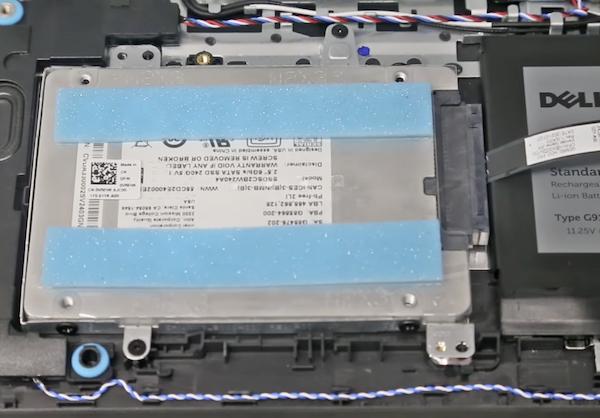
Overall, with the Dell Inspiron 15 3511, you can choose between inserting another SSD or HDD unit in the 2.5-inch SATA slot or you could also opt for an NVME M.2 2280 SSD unit. In any case, today we're going to explain to you how to go about doing both upgrades. Let's get on with it.

Acer Aspire 5 A515-56-36UT Storage Upgrade in 5 Easy Steps


We've recently talked about how to perform a RAM upgrade on the Acer Aspire 5 A515-56-36UT. We seriously recommend you do that if you haven't already. 

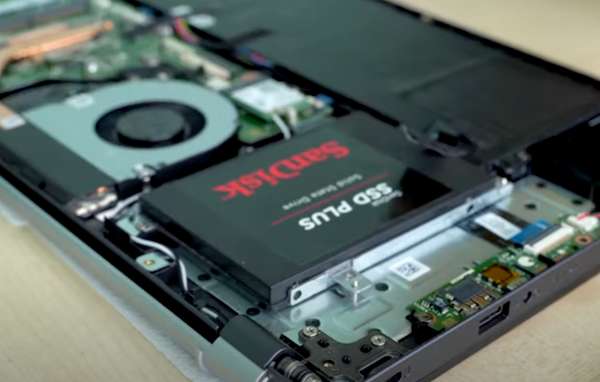
However, you're not limited to only upgrading the memory on this laptop, you can also upgrade the storage thanks to its 2.5-inch SATA bay. Today we're going to walk you through the process so you can see just how simple and easy this whole process is and you can be on your way to upgrading the storage on the Acer Aspire 5 A515-56-36UT.

Asus Rog Strix G15 G513IC-EB73 Quick Storage Upgrade Guide


We've talked recently about how to upgrade the RAM on the Asus Rog Strix G15 G513IC-EB73. And while we firmly advocate for users to do just that, RAM isn't the only thing a user can upgrade on the Asus Rog Strix G15 G513IC-EB73

Specifically, you may also upgrade the storage and with a base storage of 512 GB there's a strong chance you might want to, be it now or down the line. In any case, today I'm going to walk you through the process step-by-step so that you can see how relatively easy it is.

Let's get on with it!

Asus VivoBook 15 F512JA-AS34 SSD Storage Upgrade Guide

We've already talked in-depth about the Asus VivoBook 15 F512JA-AS34, we did a review on this laptop a few months back and most recently we covered a nifty guide on how to do a RAM upgrade on the F512JA-AS34. Having said that, while upgrading the RAM should definitely be on your list if you're a power user, upgrading the storage is also something worth looking into when the laptop is limited to 128 GB as is the case here. 

In this specific case, we don't have an open PCIe NVMe slot but we do have a 2.5-inch SATA slot to upgrade the storage through either an HDD or an SSD module. Today, in under 3 minutes, we're going to walk you through how to do it. Don't worry, next to upgrading the memory it's one of the easiest upgrades you can do to the Asus VivoBook 15 F512JA-AS34.

Asus TUF Dash F15 TUF516PE-AB73 Storage Upgrade Step-by-Step


The Asus TUF Dash F15 TUF516PE-AB73 is one of the most popular gaming laptops in the market thanks to its balanced features and affordable price point. However, it does lack in a couple of key areas: RAM and Storage.

 We've already covered how to perform a RAM upgrade on the Asus TUF Dash F15 TUF516PE-AB73 and today we're going to take you step by step on the process of upgrading the storage on the Asus TUF Dash F15 TUF516PE-AB73 through the available M.2 slot. Don't worry, it's a pretty easy process.

Asus TUF Gaming F17 FX706LI-ES53 Storage Upgrade Tutorial


The Asus TUF Gaming F17 FX706LI-ES53 is a great gaming laptop. Competitively priced, with a solid processor and high-end graphics card, this is the perfect go-to laptop for powerusers looking to game, edit videos, edit pictures, and the likes. However, it does have a couple of shortcomings, particularly the RAM and Storage capacity.

We've already shared a tutorial on how to upgrade the RAM on the Asus TUF Gaming F17 FX706LI-ES53 step-by-step, and today we're going to explain to you guys how to do another important upgrade: we're going to explain how to upgrade the storage on the Asus TUF Gaming F17 FX706LI-ES53.

Without further ado, let's get on with this guide!

Acer Nitro 5 AN515-54-5812 Storage Upgrade Step-by-Step

We've already done extensive coverage of the Acer Nitro 5 AN515-54-5812, first with the review, and later on with a quick tutorial on how to upgrade the RAM on the Acer Nitro 5 AN515-54-5812 - which we seriously encourage-. However, while upgrading the RAM will offer a significant boost to performance, what many users are interested in within this gaming laptop is the possibility to upgrade the storage. 

That's why today we're going to walk you through the step-by-step process of upgrading the storage on the Acer Nitro 5 AN515-54-5812 by inserting both a PCIe NVME module as well as a 2.5-inch SSD SATA unit. In both cases, it's a pretty easy procedure that shouldn't take you much more than 5 minutes to perform. Let's get on with it!

Acer Nitro 5 AN517-54-77KG Storage Upgrade in 5 minutes or less

Upgrading the storage on the Acer Nitro 5 AN517-54-77KG

We've talked in-depth about the Acer Nitro 5 AN517-54-77KG, we even covered a tutorial on how to upgrade the RAM on the Acer Nitro 5 AN517-54-77KG. However, while many people will only be interested in upgrading the memory since this model features a 1 TB storage unit. Some of you may also want to upgrade the storage. 

Today we are going to walk you through precisely that process. We're going to tackle how to upgrade the storage on the Acer Nitro 5 AN517-54-77KG. 

Acer Predator Helios 300 PH315-54-760S Storage Upgrade Tutorial

If you've been researching on gaming laptops lately you might have become aware of a pattern. Specifically, gaming laptops have become more affordable at the expense of delivering less storage and less RAM whilst allowing the user to upgrade these components on his own if he wishes to do so. The Acer Predator lineup is no exception to this. 

We've already explained in detail how to upgrade the RAM on the Acer Predator Helios 300 PH315-54-760S and today we're going to explain how to upgrade the storage on the PH315-54-760S.

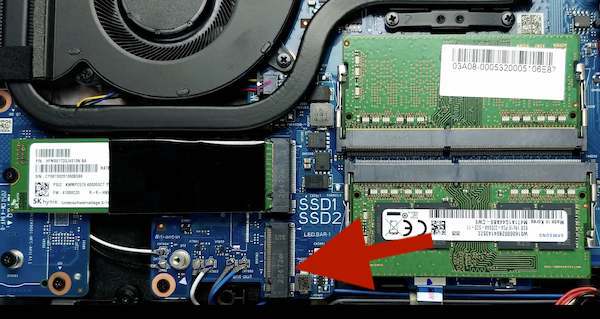
Specifically, this model comes with an internal storage of 512 GB of SSD. However, it also features an additional NVMe slot for those looking to get a bump in both storage and speed, as well as a SATA slot where you can opt to insert either a Hard Drive (not recommended these days) or a 2.5-inch SSD SATA.

▷Asus TUF FX505DT Storage Upgrade Tutorial Step-by-Step

If there are two things gamers need in a laptop - beyond a solid CPU and GPU - is enough RAM and storage. However, while it's true that manufacturers know this, many opt to ship a gaming laptop with just enough RAM and storage to get you by while giving you the option to later upgrade these features in order to keep costs low. Such is the case with the incredibly popular Asus TUF FX505DT

We've talked recently about how to upgrade the RAM on the Asus TUF 505DT and today we're going to tackle the storage. Specifically, we're going to go through the step-by-step process you need to embark on to upgrade the storage on the Asus TUF FX505DT.

BTW: If you're going to go ahead and increase the storage then we would seriously advise you to also go ahead and upgrade the RAM. This particular notebook takes up to 32 GB of RAM using DDR4 PC4-19200 2666mHZ Non-ECC SODIMM memory. We've got the step-by-step tutorial here.